|
|
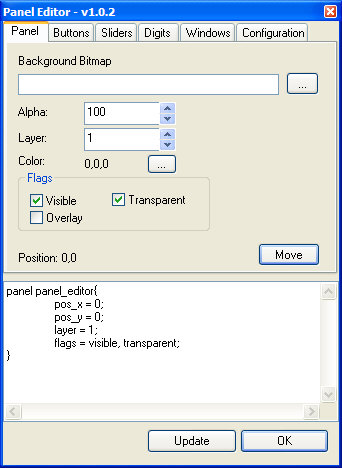
This is the Panel Editor, it is located
at the Plugins->PanelEdit menu. To the bottom we see the code that
the Panel Editor generates. Panel Background Bitmap - choose the
background bitmap of the panel Read below for the rest of the tabs. |
Buttons
The top list tells you which buttons that are added to the panel
you're editing.
Add - Add a button to the panel, default bitmaps will be used
Delete - Deletes the selected button in the list from the panel
For buttons you can choose bitmaps for the following functions
Bitmap when not pressed and not touched
Bitmap when touched
Bitmap when pressed
The position tells you where the selected button in the list
is located.
Move - Click on the button and then move the cursor over to the engine
window to move the button.
Sliders
The top list tells you which sliders that are added to the panel
you're editing.
Add - Add a slider to the panel, default bitmaps will be used
Delete - Deletes the selected slider in the list from the panel
Bitmap for slider - choose bitmap for the slider
Horisontal - Make the slider horisontal if checked
Length - Width of the slider
Min - Values at the left end
Max - Values at the right end
The position tells you where the selected slider in the list
is located.
Move - Click on the button and then move the cursor over to the engine
window to move the slider.
Digits
The top list tells you which digits that are added to the panel
you're editing.
Add - Add a digit to the panel, default bitmaps will be used
Delete - Deletes the selected digit in the list from the panel
Font - choose font for the digit
Font width - choose width of the font
Font height - choose height of the font
Length - amount of the digits, fractional part gives the number of decimals
Factor - the variable value is first multiplied by the factor
The position tells you where the selected digit in the list
is located.
Move - Click on the button and then move the cursor over to the engine
window to move the digit.
Windows
The top list tells you which windows that are added to the panel
you're editing.
Add - Add a window to the panel, default bitmaps will be used
Delete - Deletes the selected window in the list from the panel
Bitmap - choose bitmap for the window
Cut x - horizontal position of the cutout window on the bitmap in pixels
Cut y - vertical position of the cutout window on the bitmap in pixels
Width - choose width of the window
Height - choose height of the window
The position tells you where the selected digit in the list
is located.
Move - Click on the button and then move the cursor over to the engine
window to move the window
Configuration
Gridsize X/Y - Set the size of the grid, used when moving a panel or a button etc.